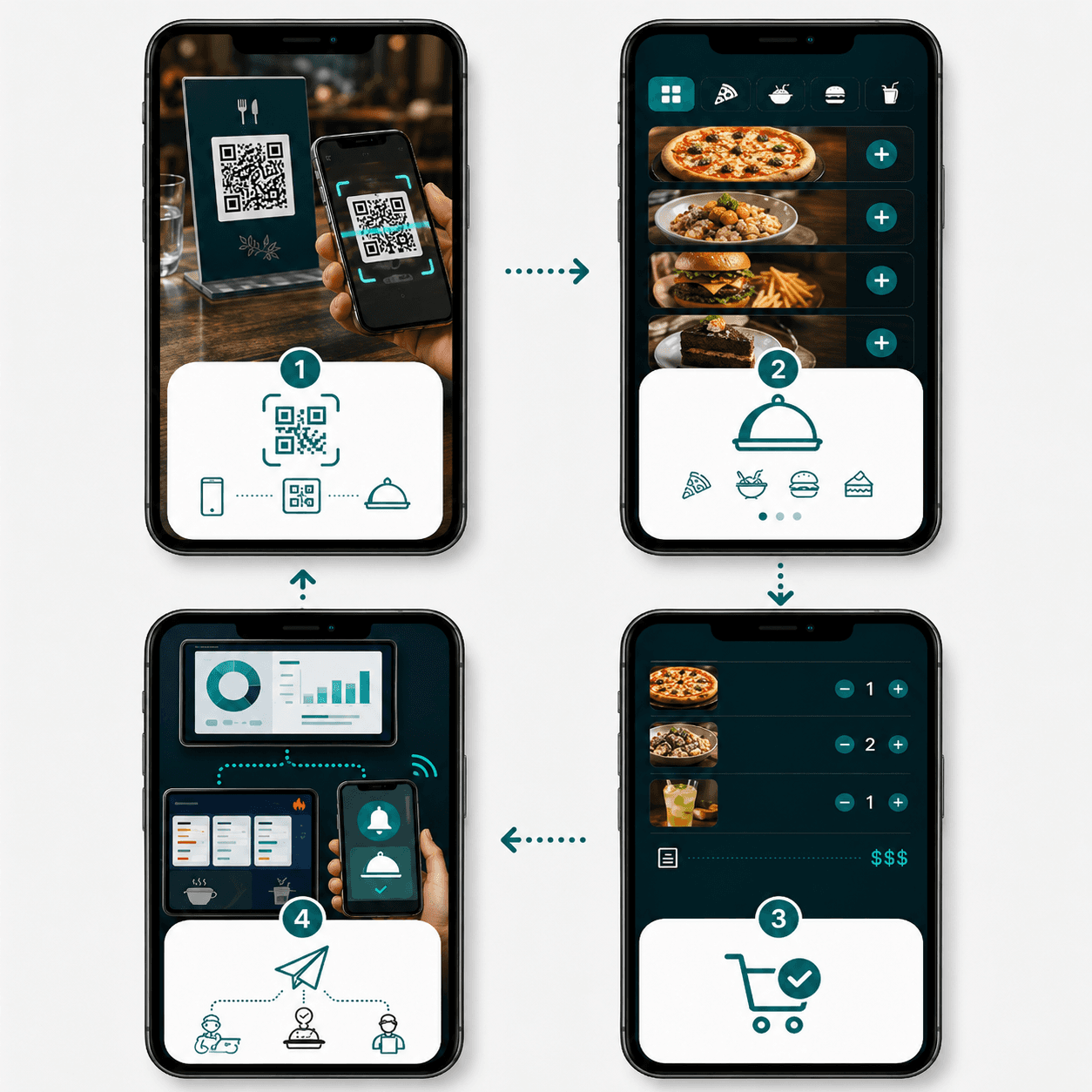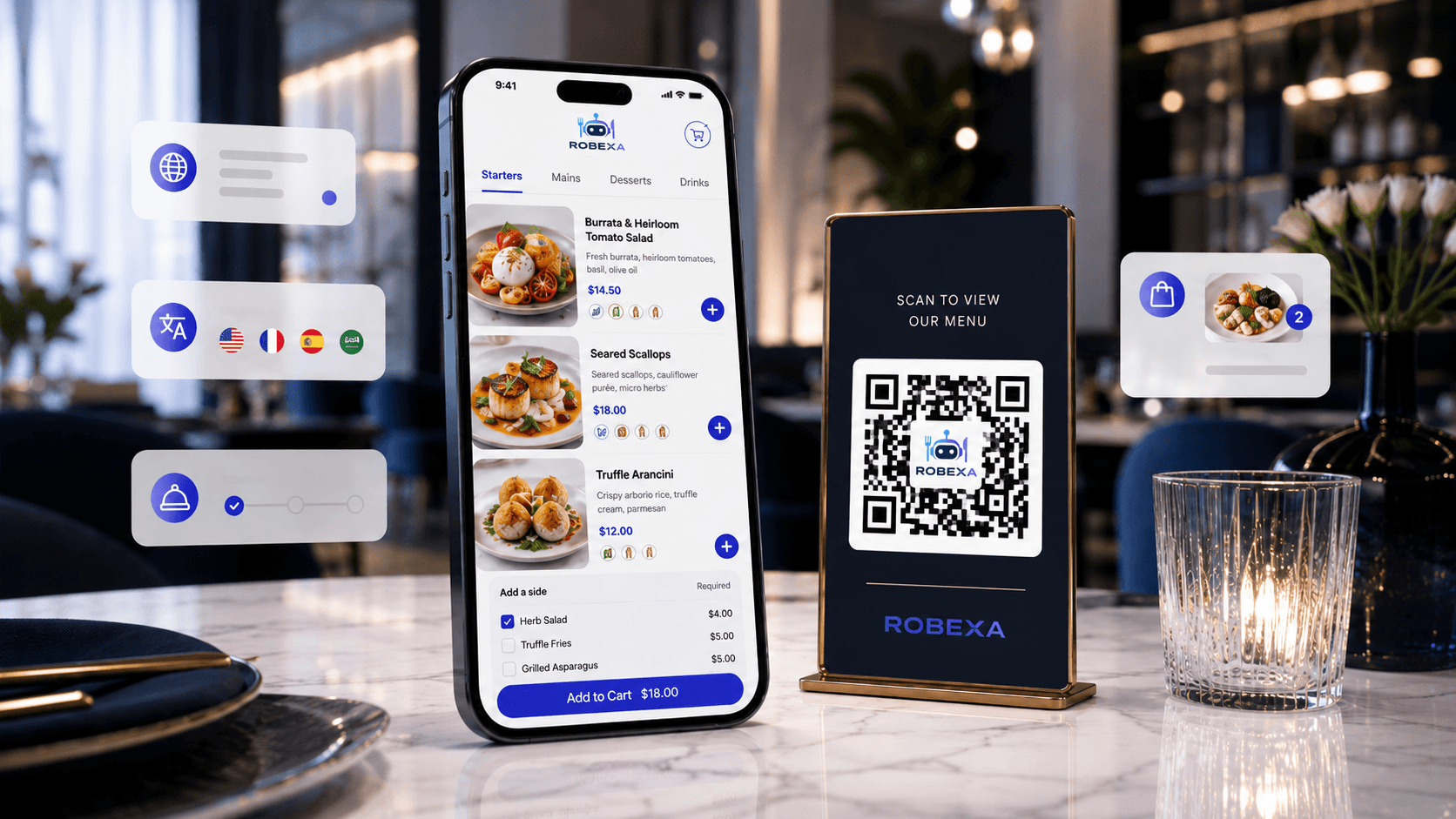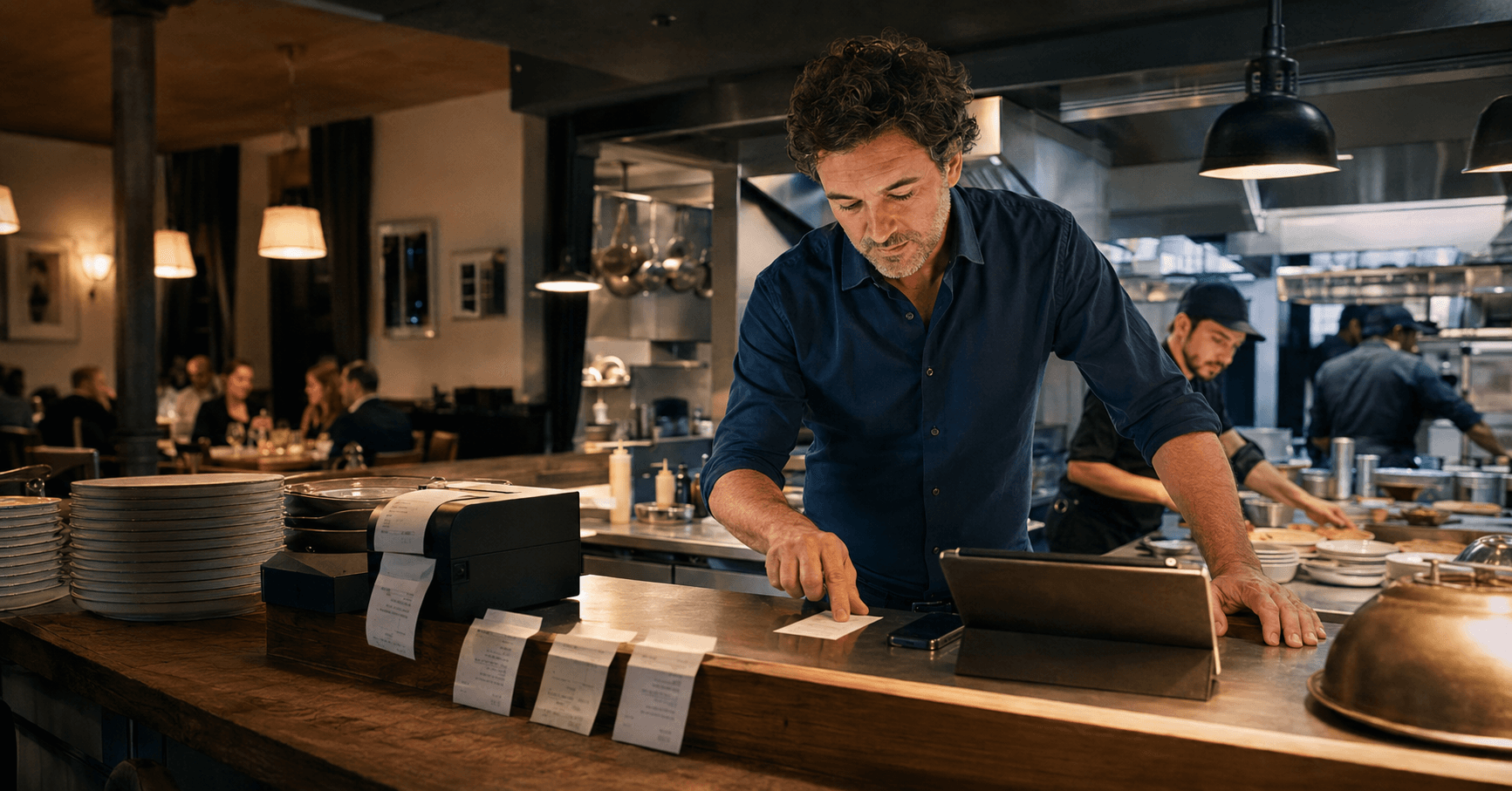
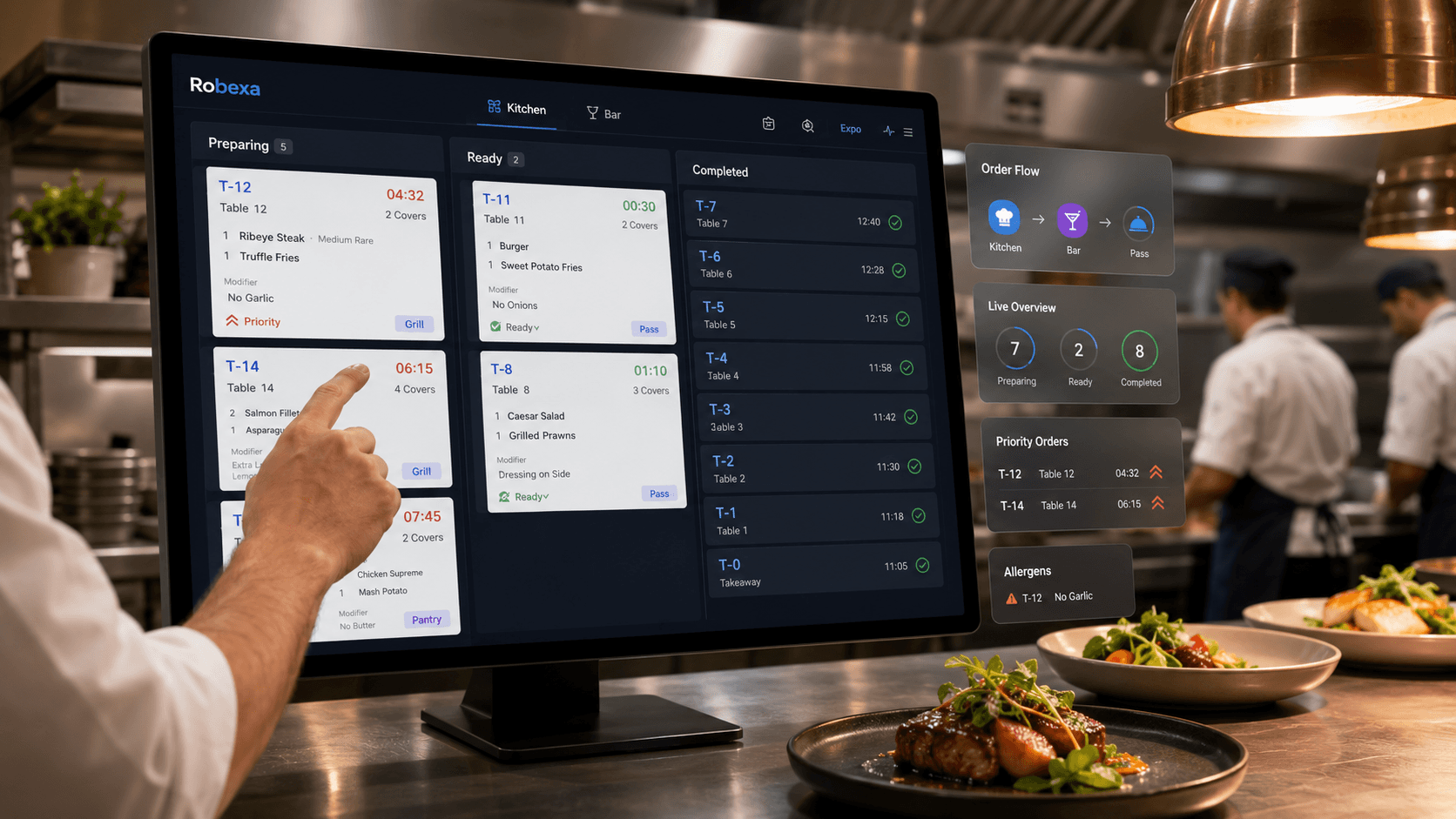
It is 7:45 on a busy evening. Orders are arriving from the dining room, a table QR code, the restaurant website and a self-ordering flow. The bar needs to know which drinks should leave first. The kitchen is coordinating starters and main courses, while the service team is waiting to see which table is ready.
With paper tickets, the team often depends on physical stacks, verbal reminders and somebody remembering which order has changed.
A kitchen display system, usually shortened to KDS, turns these incoming orders into digital kitchen tickets. It shows what has been ordered, where the order came from, which preparation area is responsible and how far the work has progressed.
The screen itself is not the main benefit. The value comes from creating a clearer operational path from order entry to preparation, handoff and service.
Key takeaways
- A KDS presents incoming restaurant orders as structured digital tickets.
- It can organise orders by station, priority, time and preparation status.
- It does not improve the kitchen automatically; routing and responsibilities must be designed first.
- It is especially useful when several ordering channels feed the same operation.
- Paper printers can remain part of the workflow where a fallback or additional station is required.
- The best rollout begins with one clear kitchen problem rather than every possible feature.
What exactly is a kitchen display system?
A kitchen display system is software that presents restaurant orders on one or more screens in preparation areas such as the kitchen, bar, pass or dessert station.
Instead of relying only on printed slips, the team sees a live operational view. A ticket can include:
- table number or order reference
- ordering channel
- dishes and quantities
- product options and modifiers
- guest or service notes
- relevant preparation information
- order time
- elapsed time
- priority
- current status
A KDS may replace paper tickets in some workflows or operate alongside printers in others. The right setup depends on the kitchen layout, team routines and the consequences of a temporary screen or network interruption.
The important distinction is that a KDS is not simply a digital receipt. It is a working interface for the people preparing and coordinating orders.
How does a KDS work from order to handoff?
A useful KDS workflow usually contains several connected stages.
1. The order is captured
An order may begin with a member of staff using a handheld, a guest scanning a QR code, an online order, a kiosk or another configured ordering channel.
Products, quantities, variants and notes are recorded in a structured form.
2. The order is routed
The complete order does not always need to appear in exactly the same form on every screen.
Drinks may be routed to the bar, hot food to the kitchen and desserts to another station. The pass or expediter may need a consolidated view showing whether every part of the order is ready.
Good routing reduces the need for employees to read irrelevant lines or verbally redirect tickets.
3. The kitchen accepts and prepares the work
New tickets appear in the appropriate view. The team can identify what has just arrived, what is already being prepared and which order requires attention.
The exact status labels depend on the operational design, but the basic journey is usually similar:
- new
- in preparation
- ready
- completed or handed off
The status should reflect a real kitchen action. Adding more statuses than the team can use consistently usually creates more ambiguity rather than more control.
4. The order is coordinated across stations
A table may have items prepared in several areas. One station may finish before another.
A KDS can help teams see whether the full order is ready or whether one component is still missing. This is especially relevant when timing matters across starters, main courses, drinks and takeaway packaging.
5. Service or fulfilment receives the handoff
When the order is ready, the relevant status can become visible to service, collection or another connected operational view.
The aim is to reduce repeated questions such as:
- Is table twelve ready?
- Are the drinks already at the bar?
- Which item is still missing?
The system does not remove communication. It should make communication more focused.
KDS versus paper tickets
| Aspect | Paper tickets | Kitchen display system |
|---|---|---|
| Order visibility | Tickets can be distributed across printers, rails and work surfaces. | Orders can be shown in a shared live view according to station and status. |
| Changes | Corrections may require another printout or a verbal explanation. | Updated information can remain associated with the digital ticket, depending on the order workflow. |
| Prioritisation | Often depends on ticket position, handwriting or verbal instruction. | Time, priority and order state can be presented consistently. |
| Coordination | Teams often compare physical tickets between kitchen, bar and pass. | Station views and a consolidated status can support coordination. |
| History | Completed tickets may be difficult to review during service. | Recent status and order activity can remain visible according to configuration. |
| Failure mode | Printers require paper, connectivity and physical handling. | Screens require reliable devices, power, network and a defined fallback. |
Neither approach is automatically superior in every restaurant. Some operations benefit from a fully digital kitchen, while others use screens together with strategically placed printers. The correct decision depends on speed, workspace, kitchen culture and resilience requirements.
What information should a KDS show?
A KDS should show enough information to prepare the order correctly without turning every ticket into a crowded data sheet.
The most useful information usually includes:
- the dishes assigned to the station
- quantity
- required variants and extras
- relevant guest or service notes
- table, pickup or delivery context
- time since the order was received
- preparation status
- urgency or explicitly defined priority
- dependencies on other stations
Information that does not help the person preparing the order should not dominate the kitchen screen.
For example, the bar may need the table reference and drink modifiers but not the complete kitchen preparation detail. The pass may need the full order state, while an individual station needs only its own items.
This is why role- and station-specific views are more useful than one overloaded screen for everybody.
Where does a KDS help most?
A KDS is especially useful when the restaurant has one or more of these conditions:
Several ordering channels
Table service, QR ordering, online ordering, kiosks and pickup orders can all create work for the same kitchen.
A shared digital workflow can reduce separate piles and make the source of each order visible.
Several preparation stations
When kitchen, bar, dessert, pass and packaging areas handle different parts of the same order, status visibility becomes more important.
High order density
During peak periods, the challenge is not simply receiving orders. It is maintaining sequence, ownership and timing while new work keeps arriving.
Frequent modifiers
Options, side dishes, dietary notes and special requests need to remain clearly connected to the correct item.
Pickup and delivery
These orders require preparation as well as packaging, collection timing and handoff. A KDS can provide context, but the operational steps must still be clearly defined.
Multiple service areas
Large terraces, several dining rooms or mixed restaurant and hotel operations can create complicated handovers between ordering and preparation.
What a KDS does not solve by itself
A KDS is not a substitute for a well-organised kitchen.
It cannot repair:
- an unclear menu structure
- badly configured product modifiers
- undefined station responsibilities
- unrealistic preparation capacity
- missing staff training
- poor screen placement
- unreliable network or power
- inconsistent status usage
- unclear rules for rush orders and exceptions
Digitising a confused workflow often makes the confusion visible—it does not automatically remove it.
A KDS is valuable when the screen reflects the real kitchen workflow. If the workflow is unclear, the screen simply displays the uncertainty faster.
Common KDS implementation mistakes
Starting with hardware instead of workflow
Buying screens is not the same as designing a kitchen process.
First determine:
- which orders go to which station
- who changes each status
- who sees the complete order
- how service receives the ready signal
- how exceptions are handled
- what happens if the system is temporarily unavailable
Only then should screen quantity, size and position be finalised.
Showing every ticket everywhere
If every station sees every item, employees spend time filtering irrelevant information mentally.
Views should be focused enough that the next action is obvious.
Creating too many statuses
A detailed status model looks impressive during configuration but can fail during a rush.
Use only statuses that correspond to an action the team can apply consistently.
Ignoring the pass
Individual stations may work correctly while the full order still reaches the guest incomplete.
Someone or some operational view must be responsible for the complete handoff.
Treating training as a feature demonstration
Kitchen training should use realistic service scenarios:
- an item becomes unavailable
- a modifier changes
- a ticket is sent twice
- one station finishes early
- a guest asks for a correction
- the network connection is interrupted
- an urgent order must be prioritised
The team needs to understand the operational response, not every technical setting.
Removing paper before the fallback is ready
A restaurant should know what happens if a screen, device, power connection or network segment fails.
The fallback may involve another screen, a printer, manual ticket handling or a defined temporary procedure. The correct design depends on the venue.
How to introduce a KDS without disrupting the kitchen
1. Map the current ticket journey
Follow an order from entry to the moment it leaves the kitchen.
Document where information is copied, where tickets wait, who asks questions and where items are most often missed.
2. Define stations and ownership
Decide which team or station is responsible for each product group and who controls the complete order.
3. Configure the menu carefully
Product names, options, modifiers and notes must be understandable in the kitchen.
Guest-facing marketing language is not always suitable as kitchen ticket language.
4. Select screen positions around the work
The screen must be visible without blocking preparation, introducing unsafe movements or forcing employees to turn away repeatedly.
Consider heat, moisture, cleaning, touch interaction and cable placement.
5. Run a controlled pilot
Use a limited service period, preparation station or order channel.
Observe the actual team rather than only checking whether tickets technically appear.
6. Train exceptions
Practise changes, duplicates, cancellations, unavailable products, delayed items and fallback operation.
7. Measure before expanding
Confirm that the pilot has improved the intended problem before adding more screens, stations or channels.
Which hardware and infrastructure matter?
The software workflow is only one part of the KDS setup.
The implementation should consider:
- screen size and viewing distance
- mounting position
- touch or non-touch operation
- protection from heat, moisture and grease
- power supply
- network reliability
- cable routing
- cleaning
- replacement or spare-device procedure
- printer fallback where required
There is no universal screen layout for every kitchen.
A small café bar, a multi-station restaurant kitchen and a delivery-focused operation have different visibility and resilience needs.
The hardware should be planned around the workflow rather than the other way around.
How does a KDS connect with service and ordering?
A KDS is most useful when it forms part of a connected restaurant process.
For example:
- a server enters an order through a handheld
- a guest submits a QR order
- an online order arrives for pickup
- products and modifiers are routed to the relevant station
- the kitchen updates preparation status
- the pass confirms that the complete order is ready
- service or fulfilment receives the handoff information
This connection reduces the need to manually re-enter the same order or repeatedly ask for its status.
Depending on configuration, orders can flow from a handheld ordering system at the table, from QR ordering and the digital menu, through a restaurant management system that keeps channels connected, and into the kitchen display system where preparation status becomes visible to the relevant stations.
How should a restaurant measure KDS success?
Do not measure success by the number of installed screens.
Useful operational questions include:
- Are fewer tickets lost or duplicated?
- Are modifiers and notes easier to understand?
- Are service-to-kitchen clarification requests decreasing?
- Can the pass see which component is delaying an order?
- Are completed orders handed off more clearly?
- Does the team use statuses consistently during peak periods?
- Can new employees understand the preparation flow more quickly?
- Does the fallback procedure work when required?
The relevant indicators should be chosen before rollout so the restaurant can compare the new process with the original problem.
Is a KDS suitable for every restaurant?
Not necessarily.
A very small operation with one ordering channel, a compact kitchen and a simple menu may work effectively with a well-designed printer workflow.
A KDS becomes more valuable as operational complexity increases:
- more ordering channels
- more stations
- more modifiers
- more simultaneous orders
- more handovers
- more need for live status visibility
The decision should be based on workflow complexity—not on whether digital screens look modern.
Conclusion
A kitchen display system makes restaurant orders visible as live, structured work.
Its purpose is not to put paper onto a screen. It is to create a clearer relationship between ordering, preparation, station responsibility and handoff.
When routing, statuses, screen placement and team responsibilities are designed properly, a KDS can help the kitchen maintain oversight while several orders and channels compete for attention.
The strongest implementation begins with one practical question:
Where does the kitchen currently lose the most time, clarity or control?